Learn how to enable bidirectional sync and understand how syncing with iOS Contacts works.
Enabling Bidirectional Sync
Table of Contents
By default, new people or changes made to people in Dextr will not sync with iOS Contacts (Bidirectional Sync). This feature can be enabled in Home Tab → Settings ⚙ → Contacts Sync → Toggle Bidirectional Sync On.
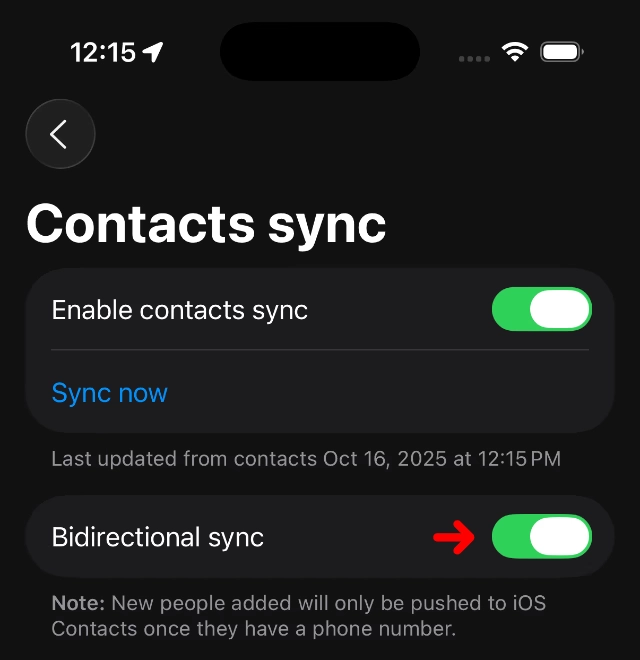
Once enabled, new people added to Dextr and changes to existing people will sync with iOS Contacts.
When Are People Imported to Dextr?
Contacts are imported to Dextr if they have at least one of the following:
- First/Given Name
- Middle Name
- Last/Family Name
- Nickname
- Organization Name
When Are New People Exported to iOS Contacts?
Currently, people added to Dextr will only be exported to iOS Contacts when they have at least one phone number oremail address. This is to avoid cluttering iOS Contacts with people added from events where you only know their name.
Any person that was imported from iOS Contacts will sync regardless of whether they have a phone number/email address or not.
What Fields Are Synced with iOS Contacts?
Most standard contact fields will be synced with iOS Contacts, however Dextr specific features are not.
| Field / Feature | Synced |
|---|---|
| First/Given, Middle, Last/Family Name | ✅ |
| Prefix, Suffix, Nickname | ✅ |
| Phonetic Given, Middle, Family Names | ❌ |
| Birthday | ✅ |
| Photo | ✅ |
| Organization Name / Job Title | ✅ |
| Department Name | ✅ |
| Phonetic Organization Name | ❌ |
| Phone Numbers | ✅ |
| Emails | ✅ |
| Addresses (Places) | ✅ |
| Social Profiles | ✅ |
| Notes | ✅ |
| Important Dates | Coming Soon! |
| iOS Contacts Relationships | ❌ |
| Dextr Relation to You | ❌ |
| Dextr First Met Notes / Location / Date / Event | ❌ |
| Dextr Relationships | ❌ |
| Dextr Tags | ❌ |